Best Digital Scanners for Photos: Fast, Easy Digitizing
Finding the right photo scanner means balancing speed, image quality, and ease of use. This guide highlights five top options that are well-suited for turning printed photos, negatives, and slides into digital files. The selections target different buyers: quick flatbed alternatives, high-volume photo digitizers, and standalone film-to-digital devices. Use the quick-reference table below to compare core strengths and limitations at a glance.
| Product | |||
|---|---|---|---|
| Plustek Photo Scanner ePhoto Z300 |
Not ideal for modern 35mm film handling |
||
| Epson FastFoto FF-680W | High-volume digitizing of old photos | Higher upfront cost; bulk may require setup | |
| KODAK Slide N SCAN | Direct film and slide digitizing | Smaller batch sizes; specialized media | |
| Canon CanoScan LiDE 400 | Versatile, compact, and easy to use for photos | Slower for large batches compared to rapid feeders | |
| ScanSnap iX2500 Photo Edition | Fast, organized scans with cloud options | Some features rely on companion software |
Plustek Photo Scanner ePhoto Z300

The Plustek ePhoto Z300 is designed to speed up photo and document digitizing. It supports multiple print sizes, including 3×5, 4×6, 5×7, and 8×10 inches, as well as letter and A4 sheets. Optical resolution goes up to 600 dpi with 300 dpi as a second option. In practice, a 4×6 photo can be scanned in about 2 seconds, and an 8×10 at 300 dpi in roughly 5 seconds. This makes it an attractive choice for households or small projects needing rapid digitization.
Best for: Busy families and hobbyists who want fast scanning of physical photos with straightforward operation. Choose this if you value quick throughput over ultra-high optical detail.
Caution: It relies on a simple feed process; large, fragile or heavily creased photos may require more careful handling to avoid skew or cropping issues. It’s not designed for professional film work.
Canon Canoscan Lide 300 Scanner

The Canon LiDE 300 focuses on compact, USB-powered scanning with automatic detection features. It is a dedicated document scanner with auto scan modes that recognize what’s being scanned, making it simple to digitize photos and documents without manual setup. It’s a solid pick for small desks and light, occasional use.
Best for: Users who want a slim, plug-and-scan device for occasional photo and document scanning on a tight workspace. It’s a good match for students or home offices that prioritize simplicity over bulk capacity.
Limitation: While it handles photo sizes well, it’s less optimized for high-volume photo batches compared with faster, feeder-equipped models.
ScanSnap iX2500 Photo Edition

ScanSnap’s iX2500 Photo Edition combines high-speed capability with a large touchscreen. It supports photos, documents, and receipts, and can scan up to 100 photos per minute. It offers Wi-Fi and USB connectivity and automatic optimizations, which helps organize scanned data and prepare it for cloud storage or local archives.
Best for: People who want fast, organized scans with cloud integration and a modern touchscreen experience. Choose this if you regularly digitize photos alongside documents and need easy file management.
Limitation: Advanced features depend on software ecosystems and network setup; standalone use is possible but cloud-friendly workflows tend to shine with ongoing use.
Kodak Slide N SCAN Film & Slide Scanner
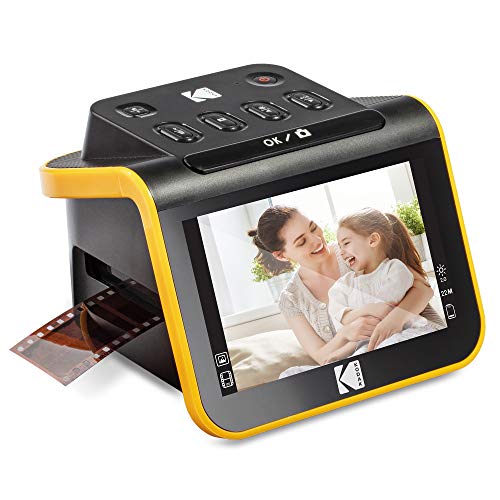
The Kodak Slide N SCAN is a dedicated viewer and digitizer for negatives and slides, with a 5″ LCD screen. It supports various formats including 135, 126, and 110 film and slides, and saves files as 22 MP JPEGs. It’s designed for quick previewing and on-device editing, making it convenient for families with a large legacy slide collection.
Best for: Archival enthusiasts who want an all-in-one solution to preview and convert slides and negatives without a computer. It’s less suited for bulk photo prints or modern 4×6 prints.
Limitation: Primarily tailored to film and slides; printing photos requires additional steps or a separate device for prints.
Buying Guide
What should I prioritize in a photo scanner?
Consider resolution, speed, and input media support. If you have thousands of photos, prioritize high-speed scanners with batch modes. For film and slides, choose dedicated film scanners or multi-format devices with slide adapters. For casual use or limited desk space, compact flatbeds are often sufficient.
Which features matter most for photo archiving?
- Batch scanning ability and automatic crop/deskew
- Support for common photo sizes (4×6, 5×7, 8×10) and negatives/slides
- File format options (JPEG, TIFF, PDF) and optional cloud integration
- Software for auto-corrections, color restoration, and organization
Standalone vs. computer-connected scanners
Standalone, stand-alone models eliminate the need for a computer during scanning, which is handy for quick digitization on the go. Computer-connected units may offer more robust software, better batch processing, and easier file management via desktop applications.
What are practical limitations to expect?
- Flatbeds may be slower for large photo libraries; feed scanners excel in speed but may be less flexible with oddly sized prints
- Film and negative scanners require specialized adapters and handling to avoid scratches
- Software ecosystems can influence workflow efficiency and cloud sharing capabilities
Recommended setup tips
- Organize photos by size and date before scanning to streamline batch processing
- Scan at 300 dpi for keepsakes and 600 dpi for fine detail preservation
- Back up digital files to a primary drive and an external or cloud service
FAQ
- Q: Do I need a high-resolution scanner for family photos? A: 300–600 dpi is typically sufficient for archival backups and digital viewing; use higher dpi for enlargements.
- Q: Can I scan 35mm negatives with all-in-one photo scanners? A: Not all models handle negatives; choose a dedicated film scanner or a model that explicitly supports negatives.
- Q: Is wireless connectivity important? A: Wireless helps for multi-user setups and sharing to cloud services, though USB-only models are common and reliable.
- Q: How should I organize scanned files? A: Use automatic naming and metadata options when available; create a dedicated photo archive folder with dates and events.
- Q: What about color accuracy? A: Look for scanners with color restoration and dust removal features or post-processing software to improve results.
- Q: Are these scanners compatible with Mac and Windows? A: Most listed models support both platforms, but check each product page for compatibility notes.