Best Center-Screen Cameras for Clear Eye Contact on Your Monitor
Answer: If you want natural, eye-level framing during video calls, choose a center-screen camera or an adjustable mount that places the lens directly at eye level on your monitor. Ideal for remote workers, educators, and presenters, these picks keep you looking directly at the camera for more engaging conversations. Below are five options that emphasize center placement, stability, and ease of use.
| Product | Why It Fits Center-Screen Design | Best For |
|---|---|---|
| Poeubmo Center Screen Webcam with Microphone | Lens aligns with screen center; strong suction mount for curved monitors | Remote workers and educators needing stable eye contact |
| Uyissykia 4K Center Screen Webcam | Center-screen mounting, PDAF autofocus, 4K at 60fps | Professionals needing crisp, natural eye contact in high detail |
| Svcouok Webcam Mount for Monitor | Clamped to monitor center position using 1/4″ screw | Anyone using external webcams that want centered framing |
| Lenovo ThinkVision TIO22Gen5 22″ Monitor | Built-in webcam centered above display for seamless eye contact | Users wanting an all-in-one center-positioned solution |
| ASUS BE279QSK 27” Conference Monitor | Integrated 2MP webcam and mic array with centered placement | Video conferencing with built-in center camera |
Poeubmo Center Screen Webcam with Microphone

The Poeubmo Center Screen Webcam is designed to align its lens with the user’s eyes, creating face-to-face interactions on a middle screen. It uses a strong suction mount that clamps quickly to curved or flat monitors, remaining stable through long meetings. This setup targets remote workers, teachers, and therapists who value natural eye contact during Zoom and video calls. A potential limitation is the reliance on the suction mount on irregular surfaces, which may loosen over time with heat or movement.
Uyissykia 4K Center Screen Webcam

The Uyissykia center-screen webcam offers 4K Ultra HD at 60fps with an upgraded clip mount that can attach to monitors, desks, or tripods. It features PDAF autofocus and smart light correction, helping maintain sharp, natural eye contact even in varied lighting. Best for professionals who need high-detail video and flexible placement. A limitation is that 4K streaming requires capable bandwidth and hardware; not ideal for users with limited connection speeds.
Svcouok Webcam Mount for Monitor

This acrylic clamp-on mount places a webcam at the center of the monitor, aligning the lens with your eyes for natural conversations on Zoom, Teams, and livestreams. It supports most webcams with a 1/4″ screw and fits monitors from 13 to 35 inches. Use this to convert any standard webcam into a center-screen experience. The warning is that some webcams without a 1/4″ mount at the bottom won’t be compatible.
Lenovo ThinkVision TIO22Gen5 22″ Monitor
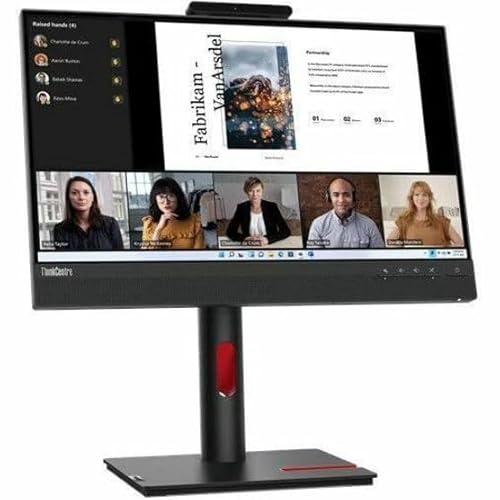
The Lenovo ThinkVision TIO22Gen5 is a 22″ desktop monitor with a built-in webcam placed centered above the display, providing direct eye contact without an external camera. This option is best for users seeking an integrated solution with privacy features, such as a physical shutter. It’s suitable for office work, meetings, and online learning. A potential constraint is the fixed built-in camera position, which reduces flexibility compared with clip-on center mounts.
ASUS 27” 1080P Video Conference Monitor (BE279QSK)

The ASUS BE279QSK integrates a 2MP webcam and mic array right into the frame for a centered focal point during video conferences. This model is ideal for teams needing a compact, all-in-one solution with a frameless design and adjustable features. The main limitation is that the built-in camera may not offer as much autofocus versatility as separate mid-screen cameras, depending on lighting and distance from the screen.
Buying Guide: Center-Screen Camera Considerations
- Center alignment and stability: Look for mounts that keep the lens aligned with your eyes and provide reliable grip to prevent drift during long calls.
- Resolution and autofocus: Higher resolution (4K) and fast autofocus improve perceived eye contact but require compatible hardware and bandwidth.
- Mount versatility: Clip-on, suction, and desk-mounted options offer different placement freedoms for single- or multi-monitor setups.
- Privacy and safety: Monitors with built-in shutters or easily removable cameras reduce privacy concerns when not in use.
- Compatibility: Ensure the device supports your operating system and software (Zoom, Teams, etc.) and matches your display size (13–35 inches for mounts).
- Integrated vs. add-on: Built-in center cameras offer convenience and minimal desk clutter; add-ons provide more placement flexibility and higher upgrade potential.
Frequently Asked Questions
- What is center-screen camera placement, and why does it matter? It places the lens at the monitor’s center to align with your eyes, producing more natural, engaging eye contact during video calls.
- Do center-screen webcams require special software? Most operate as standard webcams and work with common video apps; some high-resolution models may need driver or software support for full performance.
- Are center-screen mounts secure on curved monitors? High-quality suction or clip mounts designed for curved displays can be stable, but testing on your specific monitor is recommended.
- Is 4K better for eye contact than 1080p? 4K offers crisper detail, which can improve perceived eye contact, but it demands more bandwidth and processing power.
- Should I buy an integrated center webcam or a separate mount? Integrated cameras are convenient; mounts offer greater flexibility and upgrade paths for higher-quality external cameras.
- How do I maintain privacy with center-screen cameras? Use the monitor’s built-in shutter when available or physically cover the camera when you aren’t using it.